
Step 1
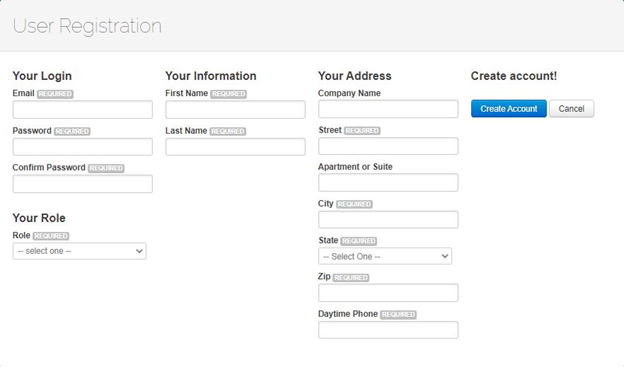
Create an Account by clicking on “register” in the top right corner of our homepage. If you are a facility owner who would like to certify your project, your role will be “generator”. If you are an installer or aggregator that will be submitting and managing multiple facilities, please give us a call at 877-333-0573 or email us at [email protected] to clarify what your role will be.
Step 2
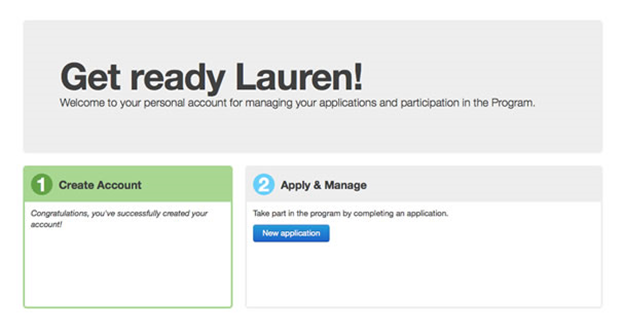
Log in to PennAEPS using the account information created in step 1. Once logged in, click on “new application” to begin registering your facility.
Step 3
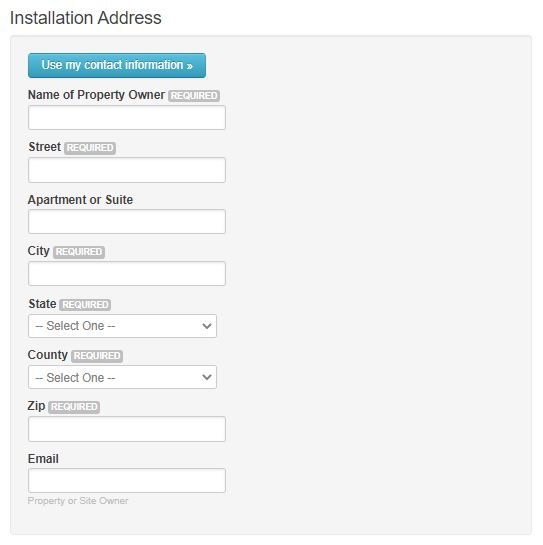
Provide the installation address and property owner/host for the solar facility. This information should match the name on the interconnection approval and can be different from the system owner. If this information is different from the owner of the system, this system is considered a lease/PPA for our application process.
Step 4
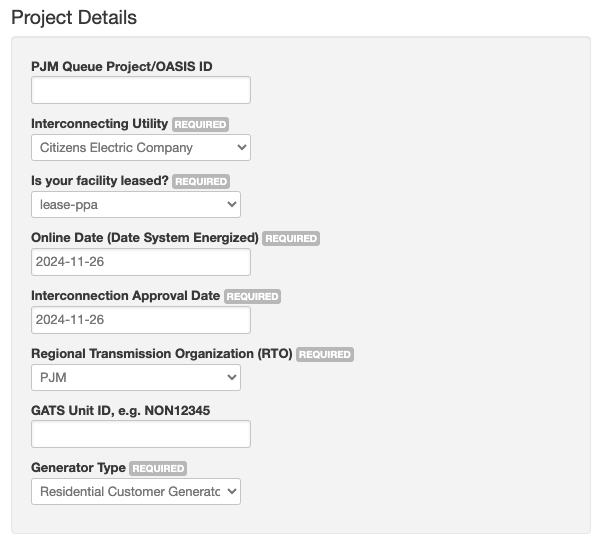
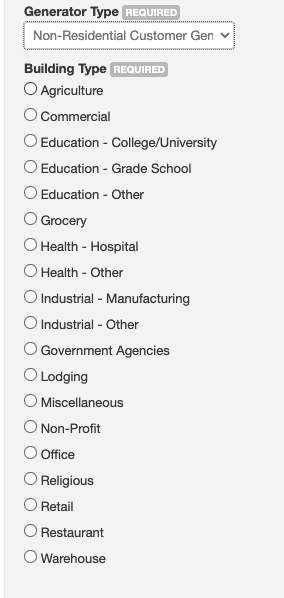
Provide detailed information about the facility. If the facility is a lease or PPA, please indicate on the application and complete the Recognition of Assignment of AECs for Lease or PPA Facilities (“ROA”). The facility host and facility owner will both need to sign the form. The online date is the date that the facility was turned on and left on for operation. Interconnection approval date should match the date shown on your certificate of completion signed and dated by a utility representative or the commercial operation date for PJM facilities (MSET facilities). The generator type field provides the type of metering configuration at the site of the generator. If Non-Residential Customer Generator is selected the Building Type will also need to be selected.”
Step 5
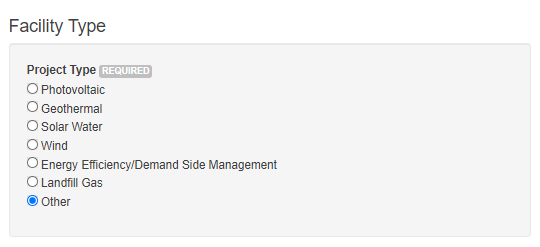
Choose facility Type. If you do not see the technology you would like to register, please select other for a list of additional project types. Other project types, will provide a detailed overview of the project on the application.
Step 6
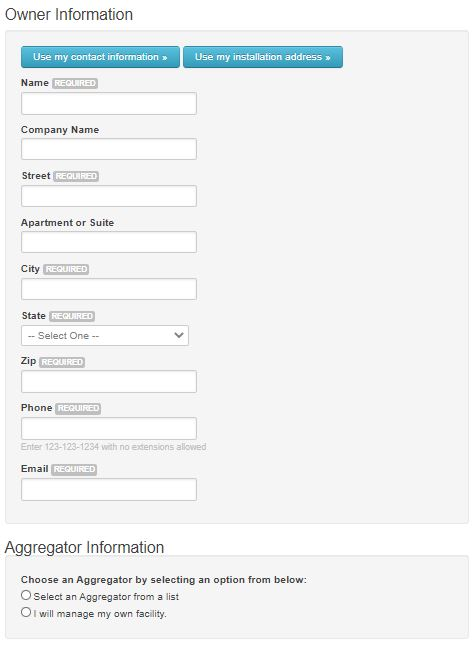
Enter the owner information and the aggregator information (if necessary). For facility owners who have contracted with an aggregator, choose their name from the drop-down menu. If the owner information does not match the property owner information provided earlier in the application for the host and installation address, please be sure to indicate that this facility is a lease/PPA under “project details”.
Step 7
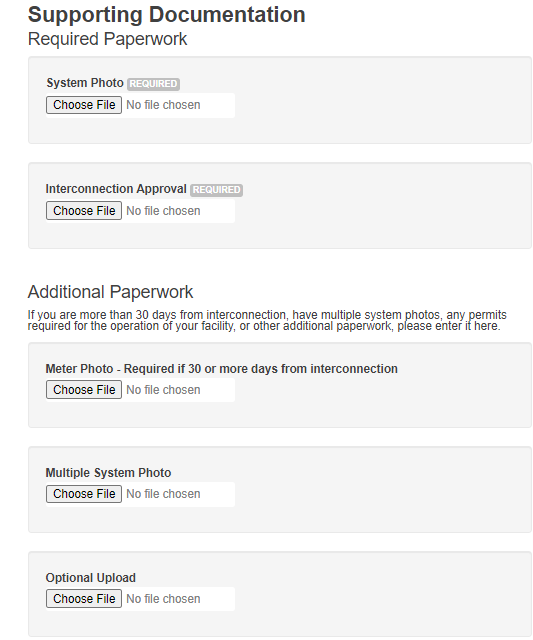
Upload supporting documents necessary for the application. All applications require a system photo and utility permission to operate or certificate of completion. A signed Schedule A is also required if the system has an aggregator and a signed ROA is required if the facility is lease/PPA.
Depending on facility type, current permits will need to be provided. Please refer to the permits list and upload them to the additional paperwork field.
Carefully read the attestation at the bottom of the page and attest to the statements. Click the “Save and Submit” button.
Step 8
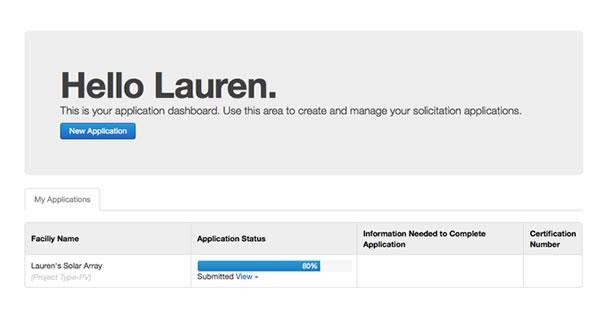
The application has now been successfully completed. A confirmation email will be provided that the application has been submitted. The Program Administrator reviews all applications within 30 days, and the status of the application can be checked anytime on the application dashboard. Once the application has been reviewed by the Program Administrator, you will receive an email requesting additional information or receive an email with the state certification number that you or your aggregator can add to your GATS account.